Markers
Markers are timestamped notes on a track. Drop one the moment you hear something, then come back later to fix it, share it or loop it.
In this guide (6 topics) ▸
Quick markers: one tap#
Below the timeline are three coloured buttons: Red Green Blue.
One tap drops a marker of that colour at the current playback position. No dialog opens, and playback continues, so you can mark while walking, driving (as a passenger) or listening with your eyes closed.
Pick a colour system and stick to it. For example: red = problem to fix, green = sounds great, blue = idea or question. Later you can see at a glance where the problems are.
Markers show up in two places:
- On the timeline as small coloured triangles. Tap one to jump there.
- In the marker list below, sorted by time.
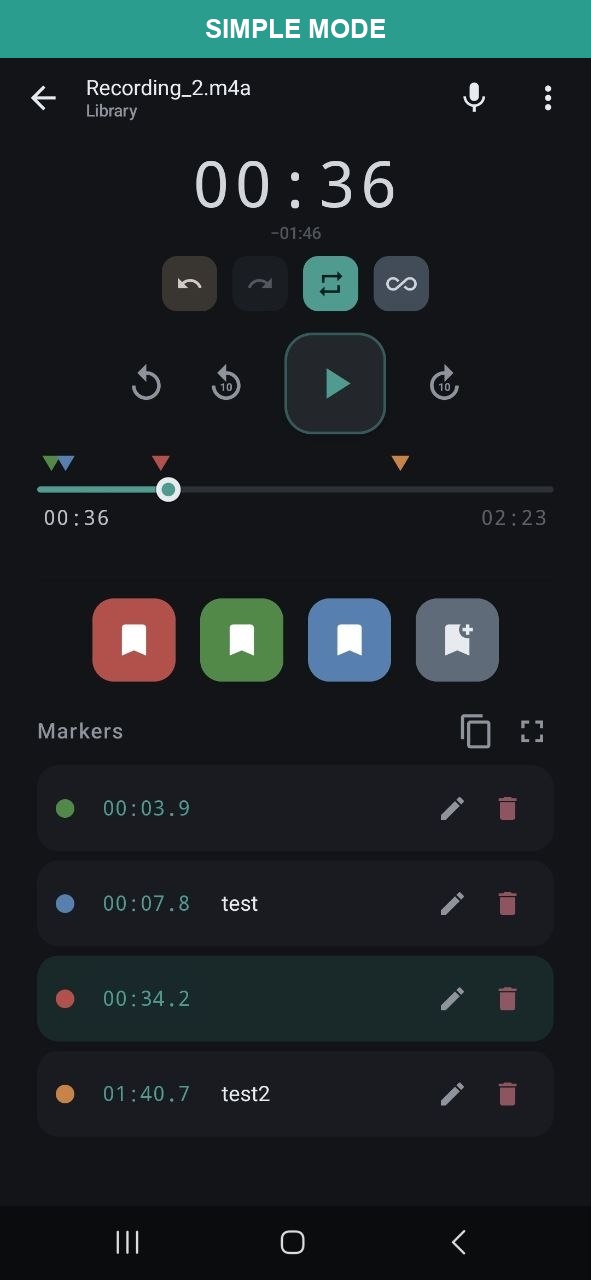
Markers with note and tag#
The fourth button, Add Marker (bookmark with a plus), opens a dialog where you can add:
- Note: what you heard, for example “vocal too loud in chorus”.
- Tag: a short keyword such as
vocal,mixorsolo. Tags are shown as#vocaland can be searched. - Colour: six colours are available: teal, red, green, yellow, blue and orange.
The search field in the library finds files by name, metadata, marker notes and tags, so good notes make your markers easy to find later.
Edit, move and delete#
| Action | How |
|---|---|
| Jump to a marker | Tap the marker row, or the triangle on the timeline. |
| Edit note, tag, colour | Tap the pencil icon, or long-press the row (outside the time). |
| Type an exact time | Open the edit dialog and enter the position (minutes, seconds, tenths). |
| Fine-tune by dragging | Long-press the time on the row until you feel a vibration, then drag up to move later or down to move earlier. Each tick is a small step that scales with the length of the track. |
| Delete | Tap the red trash icon. |
| Undo / redo | The arrow buttons at the top of the player undo and redo marker changes, including deletes. |
Dragging the time while the track is playing is the fastest way to place a marker exactly on a beat or a word: drop a quick marker roughly in place, then nudge it.
Loop between markers#
In Simple Mode the player has a ∞ marker loop button. It is perfect for practising a solo, learning lyrics or checking a single transition again and again.
- Place markers at the start and end of the section you want to repeat.
- Tap the ∞ button in the player toolbar. Each marker row now shows its own ∞ icon.
- Tap ∞ on a marker. LiveMarks loops from the previous marker up to that marker (or from the start of the track if it is the first marker) and starts playing.
- Tap the same ∞ again to stop looping.
A loop must be at least 1 second long. If two markers are closer than that, LiveMarks shows a message instead of starting the loop.
The separate loop button next to it (two arrows in a circle) repeats the whole track.
Copy markers as text#
The Copy icon (two overlapping pages) at the top of the marker list copies all markers for the current track to the clipboard as plain text. Paste it anywhere: an e-mail to the band, a message to your mixing engineer, a notes app or a DAW track note.
The text looks like this:
Artist - Song title
————————————————————
[00:03.9] #green
[00:07.8] - Kick too loud #mix
[00:34.2] #red
[01:40.7] - Great vocal take #vocal
- Every line starts with the exact time in brackets.
- The note follows after a dash, if the marker has one.
- The tag is shown with
#. If the marker has no tag, its colour name is used instead.
In A/B mode and playlists the copy button copies the markers of the track that is currently playing.
Want to send markers and audio? Use Share from the ⋮ menu instead. You can share markers only, audio files, or both.
Fullscreen marker list#
Long sessions can collect dozens of markers. The Fullscreen icon (four corners) next to the copy button hides the time display, transport buttons and timeline, so the marker list uses the whole screen.
- Playback continues while the list is expanded.
- Tap a marker to jump to it, exactly as in the normal view.
- Tap the icon again to return to the normal player.
Fullscreen is great for review sessions: play the track and work through the list from top to bottom, fixing or deleting each marker as you go.